One of the more frustrating things about the iPhone is how darned big the .mov video files are, and that there is no native way to change that. Here is a step-by-step tutorial, with pictures, as to how to both make your iPhone record your videos in a smaller format, so that your iPhone movies are saved to a smaller file, and also how to reduce the size of the .mov files that you may have already taken.
The secret to reducing the size of your iPhone movie video files (the .mov files) is in a fantastic app (link below).
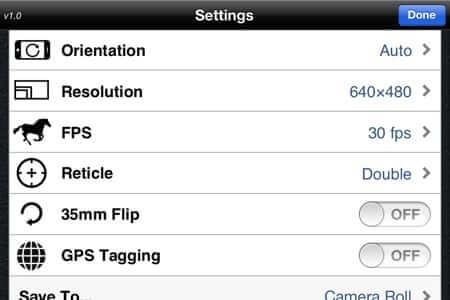
The app is called FiLMiC, and it allows you to change all sorts of settings, including the resolution of your movie. FiLMiC is, in fact, a very powerful app, through which you can adjust all sorts of things, but we are not going to discuss them here primarily because we think that when you are looking for a solution to one thing (file size, here), being told about all the other options can actually scare people off.
You don’t need to use any of the other settings or options to accomplish reducing your file size, and if you are the sort of person who wants to know what else you can do with the app, or who wants to play with all the other settings, well, you can read about the app at the link we include below. (We will however mention that one very cool feature of FiLMiC is that you can turn the camera flash on to light your scene.)
The Internet Patrol is completely free, and reader-supported. Your tips via CashApp, Venmo, or Paypal are appreciated! Receipts will come from ISIPP.
CashApp us

Venmo us

Paypal us

The default resolution for a video taken with an iPhone 4s is a massive 1080p (1080 x 1920); the same is true for the iPhone 5. This is why videos taken with these phones are so high definition and, well, gorgeous.
However, they are also huge.
By simply making the resolution smaller, your .mov files become astonishingly smaller. Yes, you lose some of that gorgeous look and definition. So you have to experiment until you find the best trade-off. FiLMiC has four different resolution options: 1080 x 1920 (the default on the iPhone 4s and 5), 720 x 1280 (the default on the iPhone 4), 480 x 640, and 360 x 480.
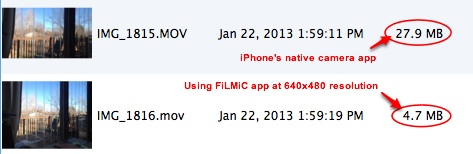
We keep ours set at 640 x 480, and the resolution is just fine for our purposes (there is no difference in the audio, at least of which we are aware), and look at the difference of the size of the file!:
You can get FiLMiC for your iPhone or iPad here. It’s $14.99, and it’s well worth it.
Now, this is all well and good for your iPhone video files from here on out. But what about all those big movie files you already have? Here is the easy (really easy) way to reduce the size of those files too.
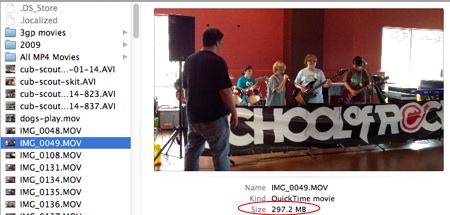
Check out how big this movie file is! 297.2 MB!
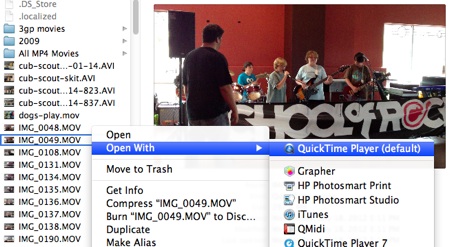
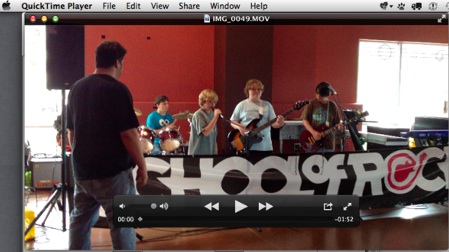
On your computer, open the movie file in Quicktime:
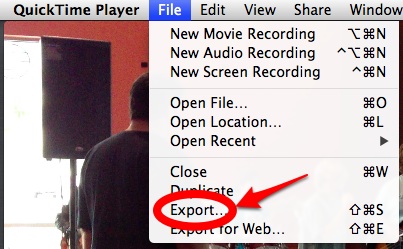
Click on “File” on the toolbar, and then “Export”:
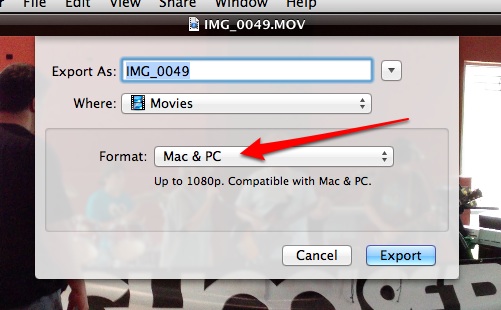
This will bring up the following – click on where it says “Format: Mac & PC”:
Which will give you these options:
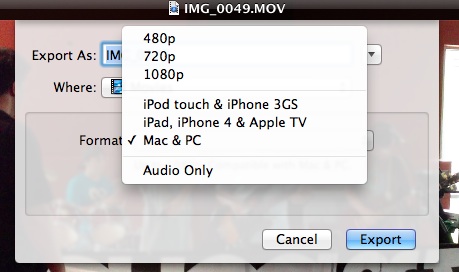
Again, you need to experiment to determine what is best for your needs. We have no problem with the 480p resolution for our purposes, and look at the difference! From 297.2 MB down to 34.2 MB!
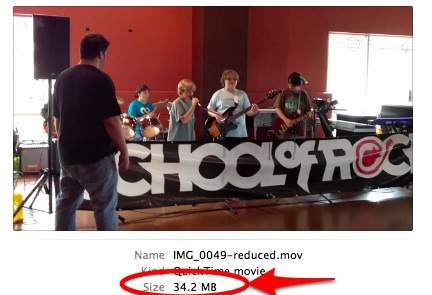
And that’s how you reduce the size of your iPhone video files!
The Internet Patrol is completely free, and reader-supported. Your tips via CashApp, Venmo, or Paypal are appreciated! Receipts will come from ISIPP.
CashApp us
Venmo us
Paypal us